How to install NVIDIA drivers, CUDA and Bumblebee on Arch Linux / BlackArch
In this note we will consider the following topics:
- How to check active GPU in Linux
- How to switch from integrated graphics to a discrete NVidia graphics card
- How to install and use Bumblebee to automatically switch between integrated and discrete graphics cards (how to enable NVIDIA Optimus on Linux)
How to check active GPU in Linux
There are several commands that will show which video card is used:
glxinfo|egrep "OpenGL vendor|OpenGL renderer"
Output Example:
OpenGL vendor string: Intel Open Source Technology Center
OpenGL renderer string: Mesa DRI Intel(R) UHD Graphics 630 (Coffeelake 3x8 GT2)
This is the same command, but launched via optirun from the Bumblebee package:
optirun glxinfo|egrep "OpenGL vendor|OpenGL renderer"
Sample output that shows that an NVIDIA graphics card is active:
OpenGL vendor string: NVIDIA Corporation
OpenGL renderer string: GeForce GTX 1050 Ti/PCIe/SSE2
More about optirun and Bumblebee will come later a bit.
Another command that displays information about the active GPU (and a cool triangle as a bonus):
glxheads
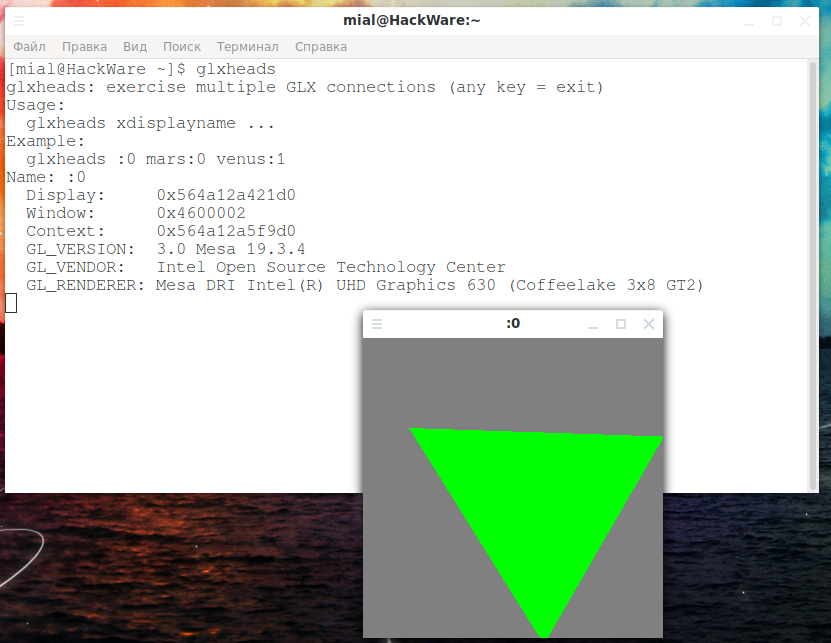
Using the lspci command with certain options, you can display information about the GPU. Any controller with [VGA controller] at the end is your currently active GPU. The others are switched off. Command to filter data:
lspci -vnnn | perl -lne 'print if /^\d+\:.+(\[\S+\:\S+\])/' | grep '\[VGA controller\]'
Output Example:
00:02.0 VGA compatible controller [0300]: Intel Corporation UHD Graphics 630 (Mobile) [8086:3e9b] (prog-if 00 [VGA controller])
How to check whether an NVIDIA graphics card is active
The following command will show the processes that the NVIDIA graphics card uses (if there are no processes, then the video adapter is not used):
sudo lsof /dev/nvidia*
Another command that shows the processes that consume the resources of an NVIDIA graphics card, as well as its load level, temperature and other metrics:
nvidia-smi
How to install NVIDIA video driver on Arch Linux or BlackArch
To install the NVidia driver in Arch Linux, BlackArch and their derivatives, run the command:
sudo pacman -S nvidia cuda nvidia-settings
How to install and use Bumblebee (how to enable NVIDIA Optimus on Arch Linux)
The Bumblebee package is needed to automatically switch between integrated and discrete graphics cards. Your card must support NVidia Optimus technology, a list of supporting cards can be found on this page: https://www.geforce.com/hardware/technology/optimus/supported-gpus
If your card is there, then proceed to the following commands. You must already have the NVIDIA proprietary driver installed, as shown above.
On Arch Linux, BlackArch, and their derivatives, run:
sudo pacman -S bumblebee virtualgl bbswitch acpid mesa
sudo systemctl enable bumblebeed.service
sudo systemctl enable acpid.service
sudo usermod -a -G bumblebee $USER
System freezes after installing Bumblebee
I ran into a problem that Bumblebee works, but when using some commands that use CUDA or access kernel modules, the system freezes. To check if you have this problem, run the lspci command, for example:
lspci -k
If the system freezes completely, reboot and remove the bbswitch package.
sudo pacman -R bbswitch
How to use Bumblebee / NVIDIA Optimus on Linux
Now any program that should use the NVIDIA graphics card can be launched with a command of the form:
optirun PROGRAM
When optirun is not used, the NVIDIA card must be in the off state, which should save electricity.
How to test Bumblebee / NVIDIA Optimus on Linux
Run the GPU performance test with the usual command:
glxgears
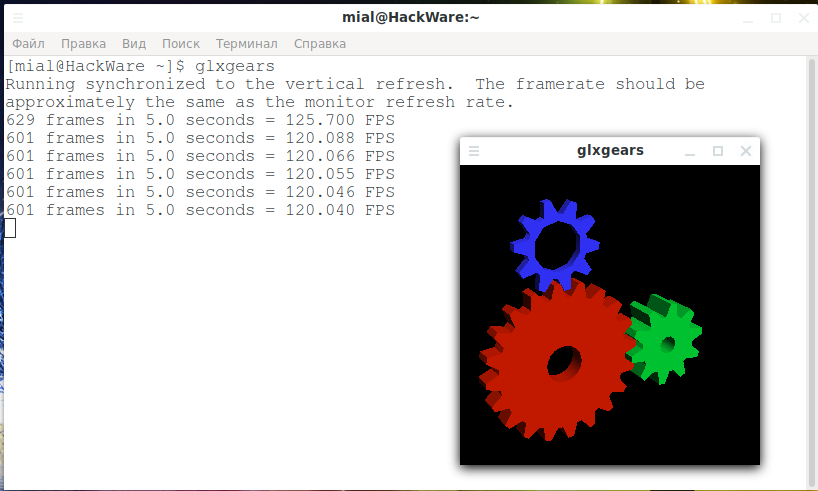
And also with optirun:
optirun glxgears

Note that FPS has grown approximately 20 times.
Another option for a video card test:
glxspheres64
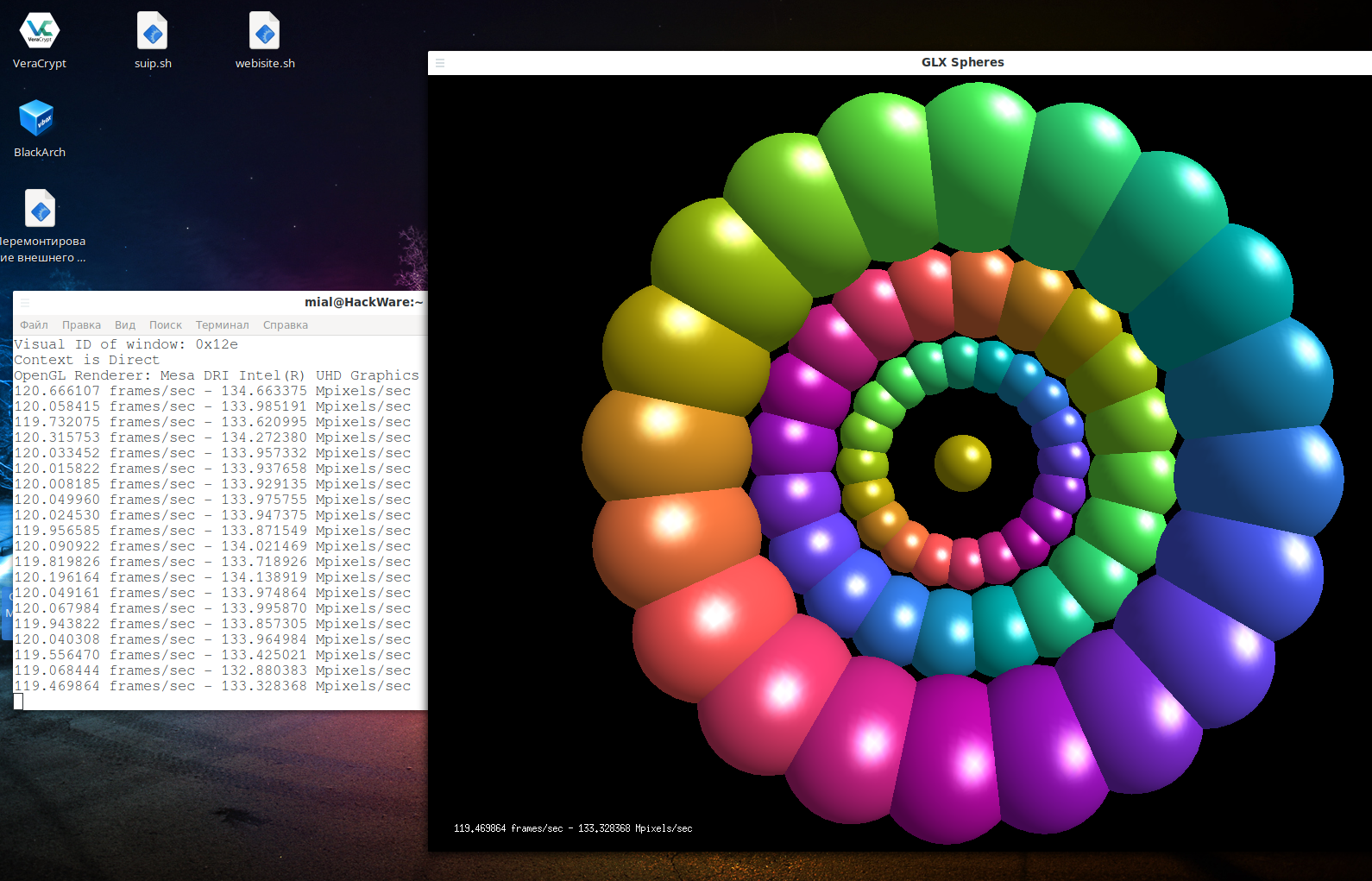
And also with optirun:
optirun glxspheres64
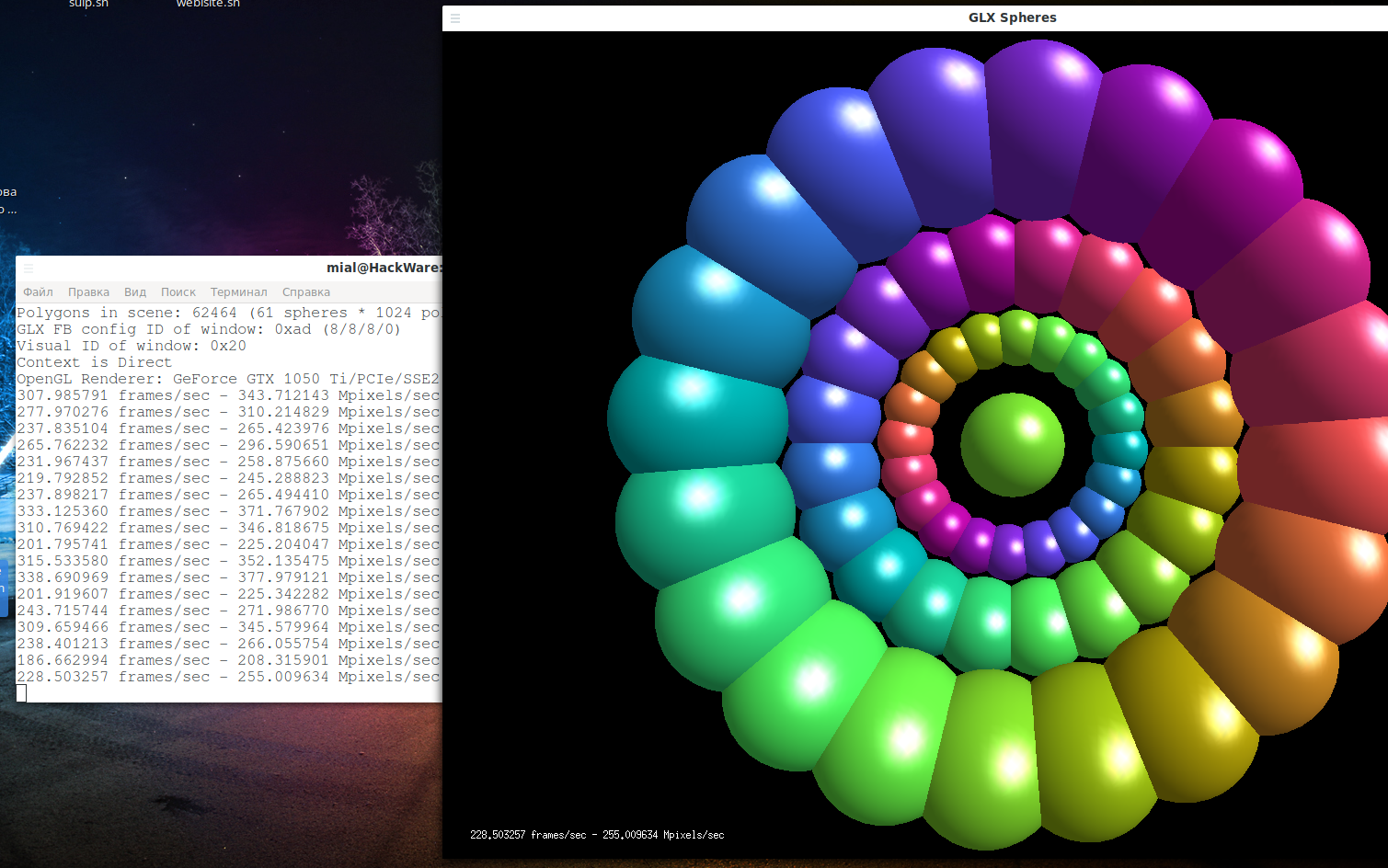
You should see a performance boost when using optirun.
While these tests are running, run the command:
nvidia-smi
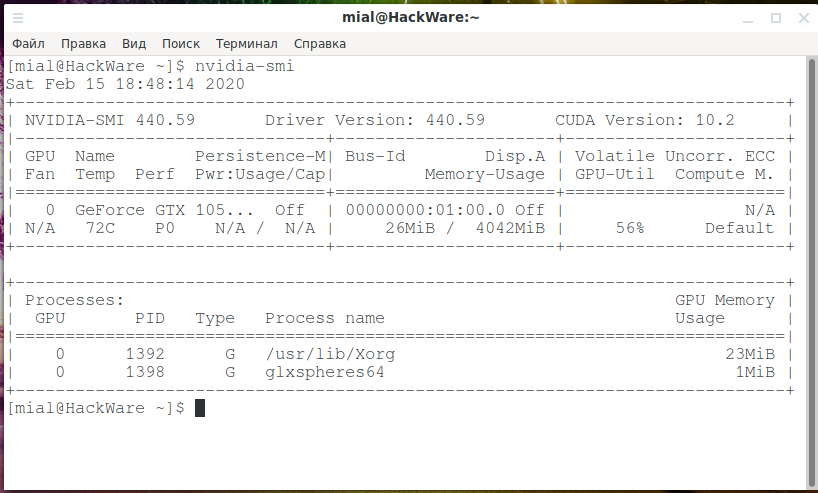
You should see processes that use a discrete graphics card.
If you have the Chromium web browser installed, then launch it in two ways:
chromium
optirun chromium
In both cases, open the tab:
chrome://gpu/
There you will see information about the active graphics chip:
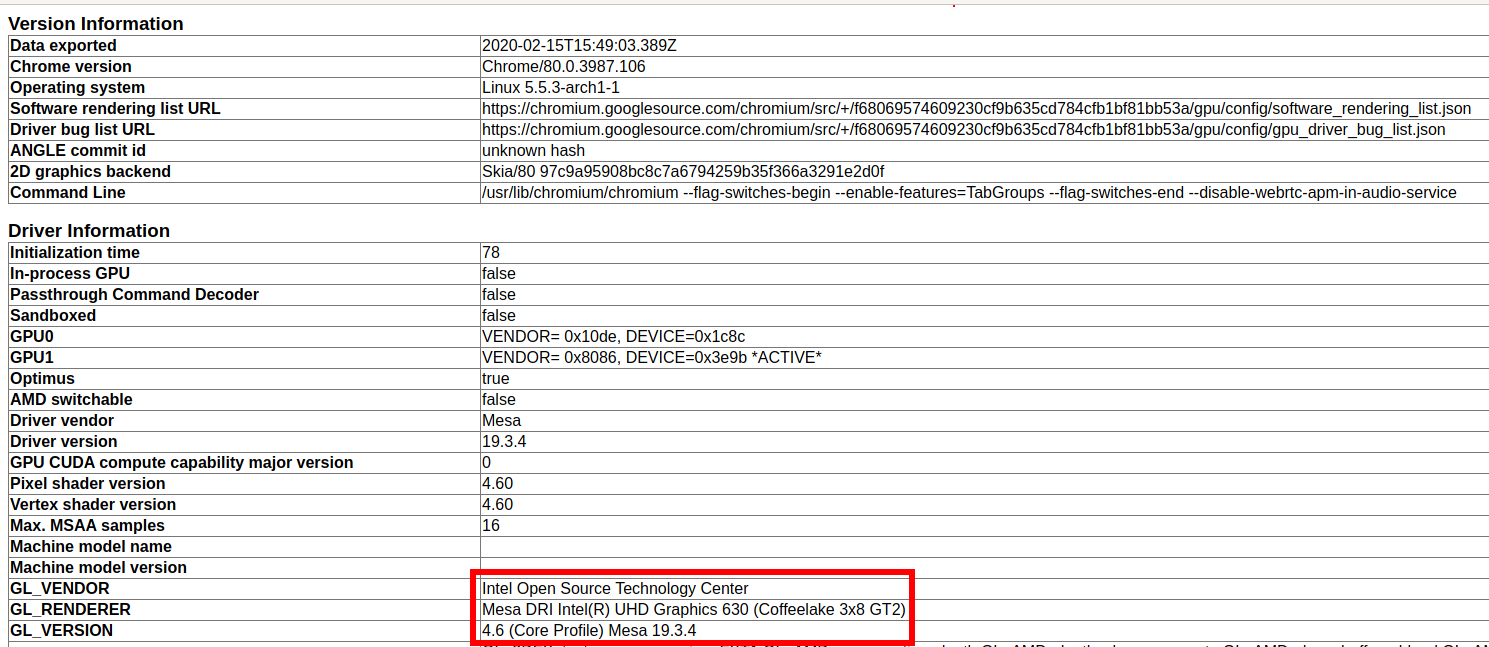
And:

Related articles:
- How to brute-force passwords using GPU and CPU in Linux (70.9%)
- How to use Hashcat on GeForce RTX 50 series video cards. How to install the driver for GeForce RTX 5060, 5070, 5080, 5090 in Linux (70.9%)
- How to make Hashcat use AMD CPU graphics cores (54.2%)
- How to Install Drivers for Hashcat on Windows (48.1%)
- How to install the Realtek RTL8821CE driver (39.3%)
- WSL (Windows Subsystem for Linux): Hints, How-Tos, Troubleshooting (RANDOM - 8.2%)